
Preview Member Offers
In order to test the configuration of your Offer Campaign, the Member Preview tab allows you to select a Member, then see their ranked Offers.
To view the list of ranked Offers for a Member:
-
Select Campaigns from the top navigation bar, then select Campaigns > Campaigns from the side navigation menu. The Offer Campaigns screen is displayed.
-
Search for and select the desired Offer Campaign (see Search for an Offer Campaign for more information on the available search options). The Offer Campaign Details screen is displayed, with the Objective tab selected by default.
-
Select the Member Preview tab.
-
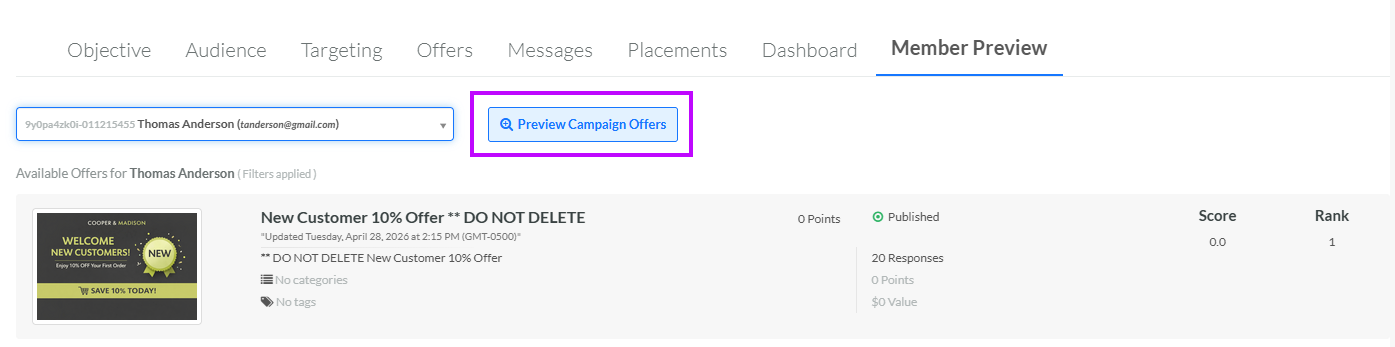
Click into the Select a Member drop-down menu, then type all or part of the Member's name or email address (you must enter at least three characters). From the list of matches, select the desired Member.
-
Click Preview Campaign Offers. The platform displays the list of ranked Offers available to this Member.
Optionally click an Offer to display the Offer Details screen. See View an Offer for more information.
